 Get Numbers
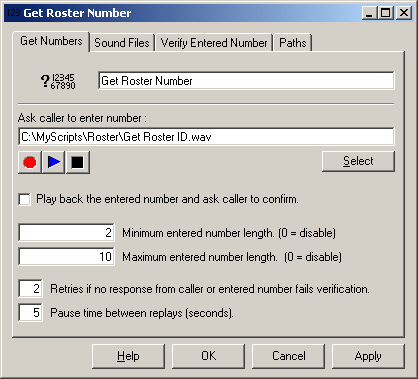
Plays a sound file, and then captures a sequence of numbers entered by the caller.
Caller can indicate that they have finished entering the numbers by pressing the "#" key,
or module can complete when entered number reaches a certain length, or when it times out awaiting further input.
Module can optionally run a verification check on the entered number.
Module can also optionally play back the entered number for customer verification.
Sound files
Multiple sound files can be selected to be played by separating the successive files by commas. eg:
prompts\1.wav,prompts\2.wav
would result in two files from the prompts subdirectory being played (1.wav and 2.wav) one after another.
If you do not want a sound file to be played at all you can also specify “none”
in the sound file text field.
If this option is selected
and the caller has entered something then VoiceGuide will play back the entered
number and ask the caller to confirm it. The caller will need to press '1' to
confirm the entry, any other keypress will result in VoiceGuide asking for the
caller to enter the number again.
The minimum length of there entered number which this module expects to receive from user.
The maximum length of the
entered number which this module should wait for. Once this many digits have
been entered the module will immediately perform the next action - be it taking
the best matching path or running any selected confirmation and verification
options.
Quite often it is desirable to determine if the entered number satisfies some criteria, and if it does not
then the option should be given to the caller to enter the number again. A
VBScript can be specified here to check if the number passes any required
checks/tests.
If Text to Speech (TTS) is enabled then a text file can be specified
in the ”Sound File” text box and VoiceGuide will read in the text file and will
speak (TTS) the contents of that file.
Play back entered number and ask caller to confirm
Minimum entered number length
Maximum entered number length
Verify Entered Number Tab
For example to check that the entered number is between 13 and 16 characters long and begins with either a 3 or a 4 the following VBScript would be used:
set vg = CreateObject("vgServices.CommandLink")
iLen = Len("$RV_ENTEREDNUMBER")
sFirstChar = Left("$RV_ENTEREDNUMBER",1)
if iLen<13 or iLen>16 or (sFirstChar <> "3" and sFirstChar <> "4") then
sResult = "verify_failed"
else
sResult = "verify_passed"
end if
vg.Run_ResultReturn $RV_LINEID, sResult
set vg = Nothing
For more information on VBScripts and how they are used from within VoiceGuide please refer to this Help file's entry on Run VBScript module.
the value of sResult should be set to either "verify_passed" or "verify_failed".
This is the method by which VoiceGuide is informed whether the verification of the entered number passed or failed.
If "verify_failed"
is returned back to VoiceGuide then VoiceGuide will either play the sound
file(s) specified in the "file to play if entered number is wrong length or
verification failed" text box, or if that text box is not set it will just play
the main prompt asking the caller to enter the number again.
If the verification script starts playing another file before returning "verify_failed"
then VoiceGuide will just wait for caller to start entering the number
again, without starting to play any other sound files. This allows customized advice
sound files to be played depending on the cause of failed verification.
$RV_ENTEREDNUMBER contains the number just entered by the caller. In the verification script use $RV_ENTEREDNUMBER instead of the $RV[ModuleName] style $RV. When the verification script is ran the $RV[ModuleName] result variable has not yet been set.
Paths
Here is an example of valid paths:
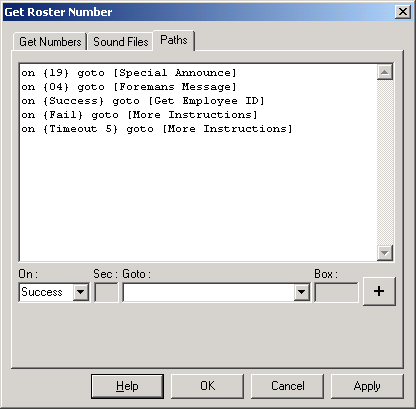
Success Path
If any of the paths match the entered number exactly then that path is taken,
otherwise the 'Success' path will be taken.
If the 'Success' path is not defined and none of the other paths match the entered number exactly then the caller will be asked to enter the number again.
Fail Path
Taken if the caller has not entered any numbers, ie. caller just presses the "#" key or VoiceGuide times out awaiting first number entry.
If the 'Fail' path is not defined then the system will hang up the call.
Timeout Paths
The timeout between key presses is set by default to 6 seconds. Default timeout values used by this module can be changed in VG.INI file - in the [moduleGetNbrs] section.
If a ‘Timeout’ path is specified then that path overrides the default inter-digit key press timeout, and that path will be taken whenever a timeout occurs awaiting a key press.
'Exact Match' Paths
If any of the paths match the entered number exactly then that path is taken immediately. It will be taken immediately even if the path does not satisfy the minimum and maximum number length limits. The "Confirm entered number" option will also be ignored, and no verification script will be ran.
Note: Manual editing of the path trigger entry loaded by script designer in the {} brackets will be necessary to specify the ‘exact number’ used. ie. the exact_number placeholder loaded by the script designer needs to be replaced with the actual number combination to trigger on.
'*' Paths
If an "on {*} " path is defined then pressing the * key results in VoiceGuide assigning a "*" to the Result Variable for the module and going down the "on {*} " path. This feature can be used to easily implement a "press * to correct" option - just point the "On {*} " path back to the same module and then when caller presses the * key they will be able to just start entering the number again from start.
If a "on {*} " path is not specified then the * key will be included in the string of numbers captured by the module.
Result Variables
Main RVs created by the 'Get Numbers' module:
$RV[moduleTitle]
Stores the characters entered by caller.
$RV[moduleTitle_PathTaken]
Stores which path was taken when exiting the module. This could be "success", "fail", "Timeout", "*" or the
entered number if the exact path match was made.
Protecting Entered Data
The keypresses made by caller in a Get Numbers module will by default be displayed in the Line Status Monitor and saved in VoiceGuide's log files.
Their display and saving can be prevented using settings in VG.INI, or by issuing directives during the call.
The following settings can be used, in section [moduleGetNbrs] in VG.INI file:
StatusDispMaxLen
MaskKeys
StatusDispMaxLen setting affects the Line Status Monitor only.
Setting StatusDispMaxLen to X will stop numbers X digits or longer from being shown in the Line Status Monitor.
eg:
StatusDispMaxLen=4 will stop numbers 4 digits or longer from being shown in the Line Status Monitor.
StatusDispMaxLen=1 will stop all keypresses from being shown in the Line Status Monitor.
MaskKeys setting can be used to specify further security options.
The following options can be specified:
script : will stop all keypresses from being stored in script logs (.vgl/.xml/.json/.csv logs)
callevent : will stop all keypresses from being stored in CallEvents log
status : will stop keypresses from being shown in the Line Status Monitor
eg: to set all 3 options set the MaskKeys to:
MaskKeys=script,callevent,status
StatusDispMaxLen and MaskKeys can also be set dynamically during the call, by setting the following Result Variables:
$RV[ini_moduleGetNbrs_StatusDispMaxLen]
$RV[ini_moduleGetNbrs_MaskKeys]
The $RVs can be set using an Evaluate Expresion module, or using any other method available for setting of $RVs.
Furthermore, if required, the VoiceGuide vgEngine, ktTel etc. logs can have their verbosity (log level) reduced or be turned off altogether using settings in section [Log] in VG.INI file.
Notes
1. When entering numbers it is usually best to ask callers to press a # key or * key to indicate they have finished entering the number. Using such terminating characters allows you to act immediately after the # or * is pressed, without the need to rely on timing-out awaiting next keystroke to determine when caller has finished entering number.
