Database Query Module
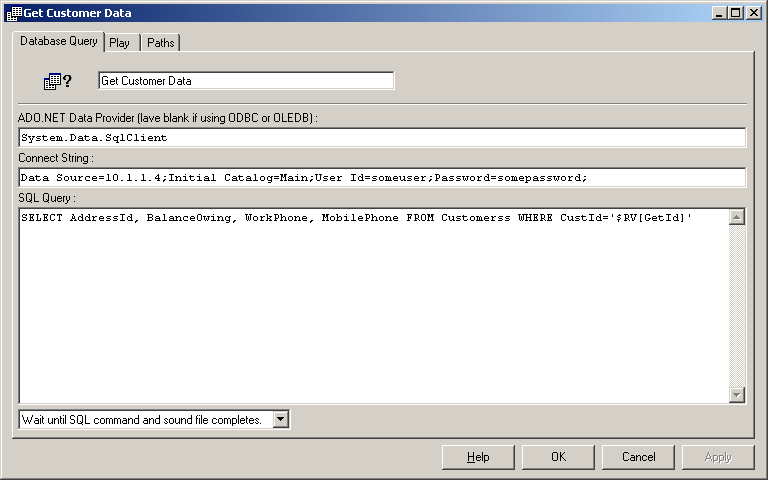
The Database module can access databases and data files. Any information retrieved is made available for use by subsequent modules.
Following technologies can be used to interact with databases:
- .NET Data Providers (ADO.NET)
- ODBC
- OLE DB
All databases support at least one of the above interfaces.
Module Parameters
.NET Data Provider |
Used to specify the .NET Data Provider to use. Can be left blank if using ODBC or OLE DB. |
Connect String |
Connect String to use. |
SQL Query |
The SQL statement to run, or the rage of cells to retrieve from Excel. |
Result Variables can be used in all of the above fields.
Below are some examples illustrating the different Connect String which can be used to access various databases. More examples of connect strings can be found at: http://www.connectionstrings.com
.NET : MS SQL Server
Data Provider: System.Data.SqlClient
Connect String: Data Source=myServerAddress;Initial Catalog=myDataBase;User Id=myUsername;Password=myPassword;
.NET : MySQL
Data Provider: MySql.Data.MySqlClient
Connect String: Server=myServerAddress;Database=myDataBase;Uid=myUsername;Pwd=myPassword;
.NET : SQLite
Data Provider: System.Data.SQLite
Connect String: Data Source=C:\MyPath\MyDatabase.db
ODBC : MS SQL Server
Connect String: Driver={SQL Server Native Client 10.0};Server=myServerAddress;Database=myDataBase;Uid=myUsername;Pwd=myPassword;
ODBC : MySQL
Connect String: Driver={MySQL ODBC 5.1 Driver};Server=myServerAddress;Database=myDataBase;User=myUsername;Password=myPassword;Option=3;
ODBC : Oracle
Connect String: Driver={Oracle in OraHome92};Server=myServerAddress;Dbq=myDataBase;Uid=myUsername;Pwd=myPassword;
ODBC : DSN Data Sources
Connect String: DSN=myDataSourceName;
NOTE: on 64 bit systems the 32-bit "ODBC Data Source Administrator" must be used to create the data source.
The 32 bit "ODBC Data Source Administrator" can be found at C:\Windows\SysWOW64\odbcad32.exe
OLEDB : MS Access
Connect String: Provider=Microsoft.ACE.OLEDB.12.0;Data Source=C:\mydatabase.accdb;
OLEDB : MS Excel
Connect String: Provider=Microsoft.ACE.OLEDB.12.0;Data Source=c:\myFolder\myExcel2007file.xlsx; Extended Properties="Excel 12.0 Xml;HDR=NO;IMEX=1";
Password Security
If passwords need to be provided as part of the database connect string, it is recommended that entire VoiceGuide script is saved as a Protected Script.
This way the passwords will be encrypted and not readable unless the VoiceGuide script password is known.
Query Results
The results of the database query are accessible using Result Variables.
The following Result Variables can be used to access data retrieved by a Db Query module:
$RV[ModuleTitle_ColumnIndex_RowIndex]
eg: module GetOrderDetails uses a query:
SELECT tel, email FROM Customer WHERE custid='$RV[GetCustId]'
After running above query:
$RV[GetOrderDetails_tel_1] (or $RV[GetOrderDetails_1_1] ) can be used to access the contents of the tel column, and
$RV[GetOrderDetails_email_1] (or $RV[GetOrderDetails_2_1] ) can be used to access the contents of the email column for first returned customer.
$RV[GetOrderDetails_tel_2] can be used to access the contents of the tel column for second customer, etc.
The following Result Variable can be used to access the number of database entries which were returned:
$RV[ModuleTitle_RowCount]
And if there in an error with connecting to database or running the SQL then the error details will be stored in this $RV:
$RV[ModuleTitle_error]
Play Tab
If "Wait Until SQL Command Completes" option is selected, the sound file specified in the Play tab will be played while the database query is performed.
Paths:
Three paths can be selected from this module:
| Success | Some data was retrieved/updated/matched. |
| Fail | No data was retrieved/updated/matched. |
| Timeout | Command took longer then the specified Timeout. |
| Error | There was an error in connecting to database or executing the SQL command |
Retrieving Data
As an example lets take an application where the caller would like to get a list of people from specified area code, and retrieve some details about them.
Suppose the caller has entered the postal area code in a Get Numbers module titled 'Ask for ZIP'.
This entered data would be stored in $RV[Ask for ZIP]
We can now use $RV[Ask for ZIP] as part of an SQL query to retrieve details.
Say we use a Database Query module titled GetClientDetails and use this SQL Query:
SELECT ClientName, BalanceOwing, WorkPhone, MobilePhone FROM Clients WHERE PostalCode='$RV[Ask for ZIP]'
The count of how many clients were found would be stored in: $RV[GetClientDetails_RowCount]
Say Number modules can be used to play the numeric information, like the balance and telephone numbers. TTS can be used to play the text information.
The following SQL statement shows how to insert data into Payments table.
In this example the Payments table has the following fields (amongst others): CustomerID, PayAmount, CardNumber, ExpDate.
INSERT INTO Payments (CustomerID, PayAmount, CardNumber, ExpDate) VALUES ('$RV[GetCustId]', '$RV[GetPayAmount]', '$RV[GetCardNumber]', '$RV[GetExpiryDate]')
The following SQL statement shows how to modify data in the Payments table.
The Payments table has has the following fields (amongst others) CustomerID, PaymentStatus.
The result variables will be replaced by VoiceGuide by the actual entered data before the SQL statement is executed.
UPDATE Payments SET PaymentStatus='Paid' WHERE CustomerID='$RV[GetCustId]'
In the examples above we have used single quotes as part of the WHERE and VALUES sections of the SQL
statement. Single quotes should be used when referring to string or text fields in the database.
When referring to number fields the single quotes should not be used: eg:
UPDATE Products SET UnitPrice=$RV[AddToPrice] WHERE ProductID=$RV[GetProductId]
Stored Procedures can be ran using the SQL EXEC statement:
EXEC UpdateStatusToPaid '$RV[GetCustId]'
More advanced Stored Procedure calls can be performed using VBScript - for which the 'Run VBScript' module can be used.
VoiceGuide allows BLOB handling. BLOBs are usually used to store sound or graphics files or other large data files.
To specify a BLOB data element at insert the following needs to be to be specified as part of the SQL statement:
<BLOB><file>filename</file></BLOB>
eg:
INSERT INTO VmMsgs (Vmb, MsgKey, WavBlob) VALUES (1111, '$RV[MsgID]', <BLOB><file>$RV[Rec]</file></BLOB>)
To specify a BLOB data element for retrieval the following needs to be to be specified as part of the SQL statement:
<BLOB><dbcolumn>ColumnName</dbcolumn><file>filename</file></BLOB>
eg:
SELECT Vmb, <BLOB><dbcolumn>WavBlob</dbcolumn><file>c:\retrievedBLOB.wav</file></BLOB> FROM VmMsgs WHERE MsgKey='$RV[MsgID]';
BLOB reading/writing is only supported if .NET Data Providers are used to connect to the database.
A sample script which writes and reads .WAV sound files as BLOB to/from database is provided in VoiceGuide's "scripts\Database BLOB WriteRead" subdirectory.
A good introductory book on SQL is:
The DB Query module can also retrieve data directly from an Excel file.
Excel range query specification follows this format :
SELECT * FROM [SheetName$StartCell:EndCell]
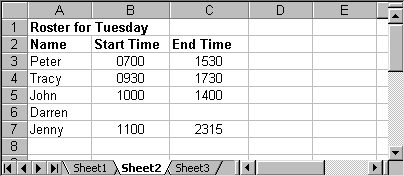
For an application which allows people to query a daily roster the Excel spreadsheet may look something like this:
The caller would enter their Roster Number - which corresponds to the row in the Excel spreadsheet,
and then we could retrieve the information in the 'start time' and the 'end time' columns using the following query:
SELECT * FROM [Sheet2$B$RV[Get Roster Number]:C$RV[Get Roster Number]]
The returned data would be saved in Result Variables. If the database query module's title was GetTimes
then the Start Time would be accessed using $RV[GetTimes_1_1] and the End Time would be accessed using
$RV[GetTimes_2_1]
If we had each day of the week on a different page, we could also ask the customer to enter the day that
they want to enquire about, and then our Query would be:
SELECT * FROM [Sheet$RV[GetDay]$B$RV[Get Roster Number]:C$RV[Get Roster Number]]
Please note that to retrieve only the value of a single cell (say B5 on Sheet2) the cell address still needs to be specified as a range, so the cell location expression should be:
"Sheet2$B5:B5" (Using "Sheet2$B5" will result in an error returned by Excel)
The first client's details would be accessible using:
$RV[GetClientDetails_ClientName_1] through to $RV[GetClientDetails_MobilePhone_1]
alternatively, these $RVs can also be used to read the retrieved data:
$RV[GetClientDetails_1_1] through to $RV[GetClientDetails_4_1]
Inserting Data
The values to be inserted into the database have been entered by the user in previous modules and Result Variables are used to in the expression.
The result variables will be replaced by VoiceGuide by the actual entered data before the SQL statement is executed.
Updating Data
Running Stored Procedures
Working with BLOBs
Books on SQL
"SQL Queries for Mere Mortals" by Michael J. Hernandez, John Viescas
ISBN 9780201433364
Microsoft Excel Example