Installing VoiceGuide v7 for Traditional Telephone Lines (Analog/T1/E1)
Installing Dialogic Drivers
Dialogic Drivers (System Release) for use with VoiceGuide can be downloaded from the VoiceGuide Downloads page.
Please always refer to the Dialogic’s Release Notes and/or Installation Notes to determine what Operating System may be used.
The Dialogic card should be placed in system, and the telephone lines should be attached to the cards before the Dialogic System Release drivers are installed.
The Dialogic System Release Drives will detect the cards present in system upon installation.
Please refer to installation and configuration instructions for the board which is used.
Dialogic Drivers install asks user to select options to install. It is best to just select all the options available.
If using a 32-bit version of Windows, the Physical Address Extensions (PAE) need to be disabled. Dialogic install program will display an alert if it detects that PAE is enabled on system.
After installing the Dialogic System Release the machine needs to be restarted.
After restarting the system open the Dialogic Configuration Manager (DCM) and confirm that the Dialogic card has been dtected and that the Dialogic service can be started.
If the Dialogic card is not found by the Dialogic Configuration Manager (DCM) then check whether the card has been detected by the Windows' Device Manager.
If the Windows' Device Manager is showing a yellow exclamation mark next to the Dialogic card then you can try selecting the driver to be used by the card manually.
To update the driver right-click on the Dialogic device in the Windows' Device Manager and the click Update Driver. Select to "Browse my Computer" for the correct driver,
and browse to "C:\Program Files (x86)\Dialogic\driver\64-bit" folder. Then click Next and the Windows' Device Manager should find the right file and load the driver.
The DCM should then be able to find the card when you reopen the DCM app.
If there are problems starting the Dialogic service please ensure that the Windows account used has sufficient privileges and
the install was started using 'Ran as Administrator' option.
If there are still problems then please fully disable the Windows' User Access Control and then reinstall the Dialogic System Release drivers.
Windows' User Access Control is disabled in the Windows Registry, by setting the EnableLUA parameter to 0.
After Installing Dialogic Drivers
Once Dialogic System Release Driver has been installed and the Dialogic Configuration Manager (DCM) can be started OK:
The Dialogic service should be set to start automatically. Use DCM 's Settings -> System/Device autostart -> Start System menu, or by using the Windows' Control Panel -> System and Security -> Administrative tools -> Services
Windows Power Management is not supported and must be disabled. Dialogic drivers do not handle resuming from Sleep or Hibernation states. Hybrid Shutdown" or "Fast Boot" is also not supported and must be disabled.
Only after the Dialogic System Release drivers are installed on the system and the the Dialogic service is started can the VoiceGuide installation proceed.
Updating Dialogic Drivers
To install a new version of the Dialogic System Release you need to first fully uninstall the current version.
When un-installing please select the 'Do not save configuration' option, and restart system after uninstall.
You will then be able to install new version of the Dialogic System Release drivers.
After installing the Dialogic System Release the machine needs to be restarted.
Installing VoiceGuide
Dialogic System Release drivers must be installed first.
VoiceGuide needs to be installed using the Administrator account.
If not logged in as Administrator then right click on VoiceGuide install .EXE and select 'Run as administrator' :

The VoiceGuide installer will then start:
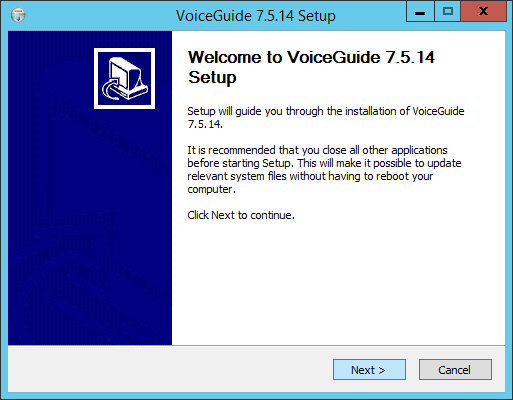
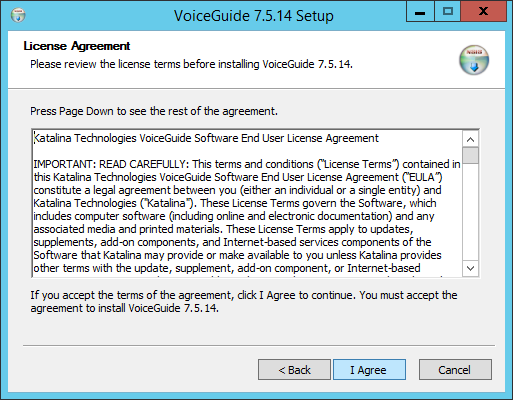
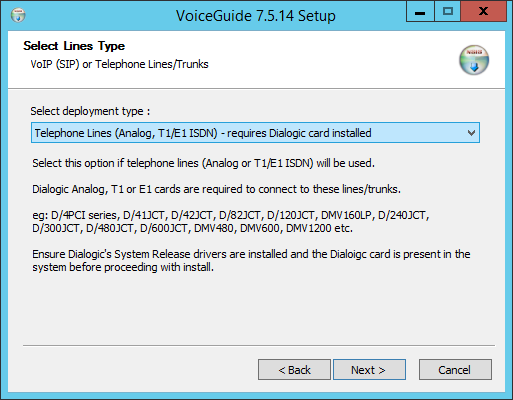
The Deployment Type needs to be set to:
Analog, T1/E1 ISDN
This will instruct VoiceGuide installer to set up configuration files for Analog/T1/E1 based systems that use traditional Dialogic cards:
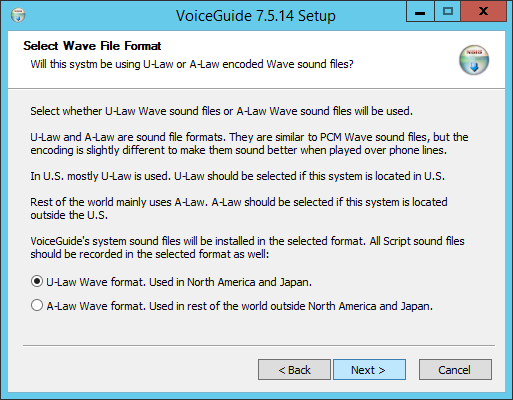
Then select whether by default the system should use ULaw or Alaw format when recording files, and which format 'system sound files' should VoiceGuide use:
VoiceGuide will play back many different format sound files, and this selection will not restrict what sound files can be played, but this selection decides whether ULaw or Alaw format will be used when recording. Matching VoiceGuide's record sound format with the format used by telephone service provider results in best quality sound recordings.
Also, playing sound files in the same format as what the telephone service provider uses means that the files will not need to be transcoded or resampled when sent over the telephone service provider's network. This helps in achieving the best possible quality sound playback.
Next select the directory into which VoiceGuide should be installed.
If you select a directory other then the default directory then the VoiceGuide's Config.xml setting that specifies the callflow that is to
be used on each channel will need to be updated with that directory details. (and VoiceGuide service restarted afterwards).
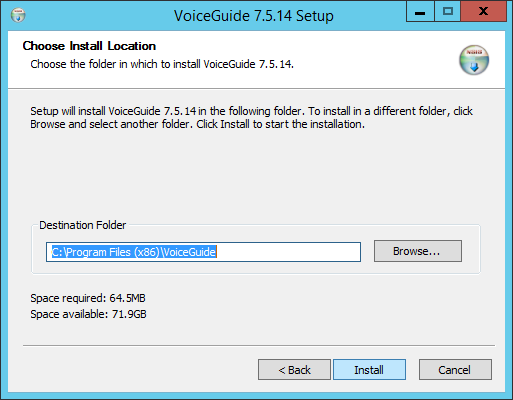
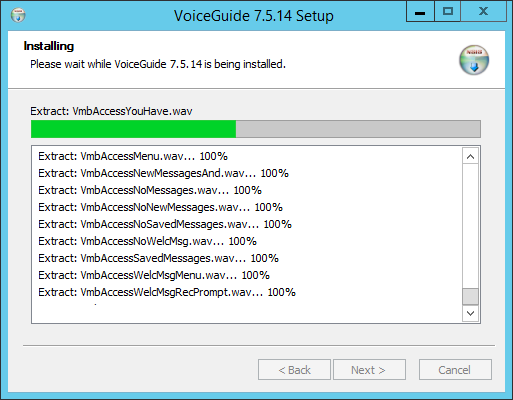
The files will then be installed:
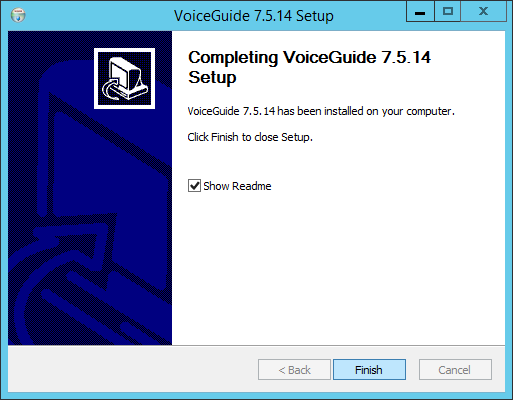
When installation is complete the final screen will appear:
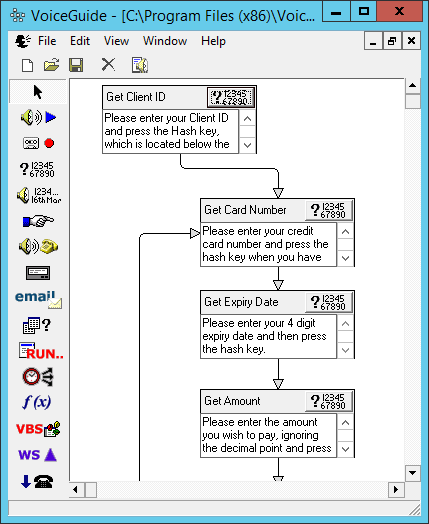
And the Script Designer will be started, loading the default demo callflow.
(The callflows/scripts to use are set in the Config.xml file):
The IVR icon will also appear in the icon tray at the bottom right of the screen.
Once the VoiceGuide Service starts a still green arrow will show on that icon:
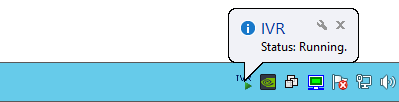
If VoiceGuide was installed into the default directory you should not be able to call into the system and have VoiceGuide answer the incoming call and take the caller though the demo script set in Config.xml (the Credit Card Payment script).
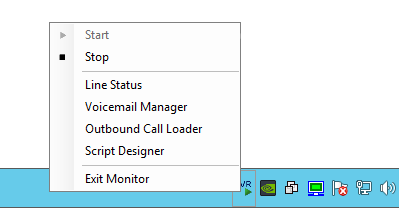
Clicking VoiceGuide's IVR tray icon shows a context menu that allows user to control the VoiceGuide service, and start various VoiceGuide applications:
Configuring VoiceGuide
VoiceGuide configuration is set using the following files: VG.INI and Config.xml
VG.INI file is located in VoiceGuide's main directory.
Config.xml file is located in VoiceGuide's \conf\ subdirectory.
Config.xml is used to set what lines/channels are opened by VoiceGuide and what script is to be used when answering incoming calls on each of those lines/channels.
The default Config.xml file opens the first 4 ports of an analog Dialogic card. If an analog Dialogic card is installed then immediately after installing VoiceGuide you will be able to call into the system on any of the 4 ports and you will hear VoiceGuide answer the call and start a demonstration 'Credit Card Payment' script.
If a card other then a 4 port analog card is used then the Config.xml file in VoiceGuide's \conf\ subdirectory will need to be changed to match the card. Sample Config.xml files are provided in that directory as well, showing how Config.xml should be set if a card other then a 4 port analog card is used.
If not running as Administrator then permission changes may need to be made to allow editing of Config.xml, VG.INI, etc. files.
In Windows Explorer:
- Right click on the VoiceGuide directory
- Select Properties
- Go to the Security tab
- Make the necessary changes
Alternatively, the text editor application used to edit the Config.xml, VG.INI, etc. files would need to be started using the 'Run as administrator' option.
Then Windows will not block the saving of new versions of Config.xml, VG.INI, etc. files.
We recommend using this text editor: Notepad++ : https://notepad-plus-plus.org/
After you hear the demonstration script answer the call you are now ready to start creating your own scripts, make outgoing calls etc.
The Script Designer and other VoiceGuide applications can be started by right-clicking on the IVR tray icon and selecting from the context menu.
If not running as Administrator then you will not be able to stop and start
the VoiceGuide service using the VoiceGuide Service Monitor applet from the icon tray.
To stop/start the VoiceGuide IVR service you will need to go to Control Panel ->
System and Security -> Administrative tools -> Services
Wav file format
When using VoiceGuide v7.x it is best if sound files used are uLaw or ALaw encoded (both 8kHz, 8 bit, Mono, in .WAV file).
uLaw or ALaw format is selected at install time.
Systems located in North America and Japan should use the uLaw format.
Systems located in the rest of the world use ALaw format.
These are the two formats used by telephone companies to transmit voice over the traditional Analog and T1/E1 connections, and using this sound format will result in little or no distortion of the sound when it is transmitted over the telephone service provider's network.
