Configuring Speech to Text (STT)
Only the Trial and Enterprise versions of VoiceGuide support Speech to Text (STT).
The Professional version of VoiceGuide does not support STT.
VoiceGuide can use:
- Google Cloud Platform STT
- Microsoft Azure STT
Other STT engines also supported. Please contact sales@voiceguide.com to discuss your STT requirements.
Enabling STT
STT is enabled in a specific VoiceGuide module by setting a Result Variable named:
asr_nlp_modulename
where modulename is replaced by the title of the module in which the STT is to be enabled.
The Result Variable must contain a JSON formatted string that specifies which engine and options are to be used in that module. eg:
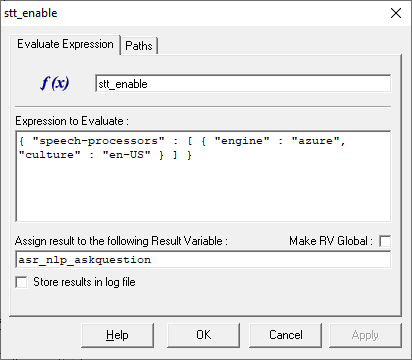
{ "speech-processors" : [ { "engine" : "azure", "culture" : "en-US" } ] }
The above value would enable Azure STT engine in the corresponding module.
eg: This is how an Evaluate Expression module can be used to enable Azure STT in module titled: askquestion
While STT is being performed, VoiceGuide updates the following Result Variables in real-time, as the user is speaking. Monitoring these Result Variables during speech can assist in determining the response sooner:
modulename_speech
modulename_speech_preview
modulename_speech_final
Other Result Variables may also be created, depending on STT engine used. Most of these would be visible in VoiceGuide's vgEngine trace log.
Then following paths can also be used in STT enabled modules:
stt_end
silence_short
silence_medium
silence_long
silence
The stt_end path would be taken when the STT engine indicates end of STT recognition.
The graduated silence detection settings facilitate faster processing of short user responses.
The silence detection ranges are set in VG.INI file, in the [PlayRecordConfig] section:
;in 100ms units. 2=200ms, 15=1.5sec
stt_silence_length_short=2
stt_silence_window_short=15
;in 100ms units. 5=500ms, 100=10sec
stt_silence_length_medium=5
stt_silence_window_medium=100
;in 100ms units. 20=2sec
stt_silence_length_long=20
A silence_short event will be reported if a silence (no speech) of length stt_silence_length_short is detected during the first stt_silence_window_short while doing STT.
A silence_medium event will be reported if a silence (no speech) of length stt_silence_length_medium is detected during the first stt_silence_window_medium while doing STT.
A silence_long event will be reported if a silence (no speech) of length stt_silence_length_long is detected at any time during STT.
A silence event is also raised whenever any of the above silence_* events occur.
SilenceDetectLevel value is not used in silence detection during STT.
Google Cloud Platform STT
To use Google Cloud Platform's STT, the VG.INI [STT] 'Engine' entry must be set to: GCP. eg:
[STT]
Engine=GCP
And the full path to the Google Cloud Platform's Credentials file must be specified in the VG.INI [GCP] 'CredentialsFile' entry. eg:
[GCP]
CredentialsFile=C:\SomeDirectory\IVRTTS1-e79d6258b5fd.json
Microsoft Azure STT
To use Azure STT, the VG.INI [STT] 'Engine' entry must be set to: Azure. eg:
[STT]
Engine=Azure
And the Microsoft Azure key must be specified in the VG.INI [Azure] 'key' entry. eg:
[Azure]
key=your_key_goes_here
Dialogic HMP Based Systems
On Dialogic HMP Based Systems the HMP license must include the Speech_Integration option in order for Speech-To-Text to function on that channel.
Dialogic Card Based Systems
If using Analog Dialogic cards then a special "CSP Enabled" Firmware file will need to be selected. This can be done in the Dialogic Configuration Manager (DCM), by opening the properties page for the analog card, and on the Misc tab selecting the following Firmware file:
D/41JCT : d41jcsp.fwl
D/120JCT : d120csp.fwl
Similarly, when using the Dialogic T1 and E1 cards (JCT or DMV) the "CSP Enabled" Firmware needs to be selected in the Dialogic Configuration Manager. Further changes in dxxx resource specification in Config.xml file also need to be made when using T1 and E1 JCT cards.
Please contact support@voiceguide.com when deploying Speech Recognition on Dialogic T1/E1 cards.
